


QueryQuake is a free Chrome extension that brings over 30+ essential SEO tools together in one interface. QueryQuake’s core features include SERP rank checking (Google and Bing), backlink analysis (high-quality, new, risky links), index and crawl tools (robots.txt, sitemaps), authority metrics, on-page audits, keyword research, and competitor analysis. You simply install the extension from the Chrome Web Store, click its toolbar icon, and select the tool you need. (See “Getting Started” below for a quick walkthrough.)
This guide explains every QueryQuake tool in detail, with real-world usage tips and context. Throughout, we highlight SEO best practices and metrics, backed by industry sources. By the end, you’ll know how to use QueryQuake’s suite to audit your site, improve rankings, and streamline your SEO workflow.
To begin, install QueryQuake (free) from the Chrome Web Store. The process is straightforward: once added to Chrome, click the QueryQuake icon in your toolbar and choose the tool you want. Results appear instantly in a tabbed panel, and you can export data as CSV or copy it for reports.
Key Steps to Use QueryQuake:
- Click the QueryQuake icon in your browser toolbar.
- Pick the tool you need (e.g. “Google SERP” or “Robots.txt”) from the list.
- View the results in the popup (organized in tabs).
- Export or copy the data for further analysis.
Below, we dive into each tool group, explaining how to use it, why it matters, and how it fits into a real SEO strategy.
SERP Rank & Keyword Tools
Google & Bing SERP Rank Checker
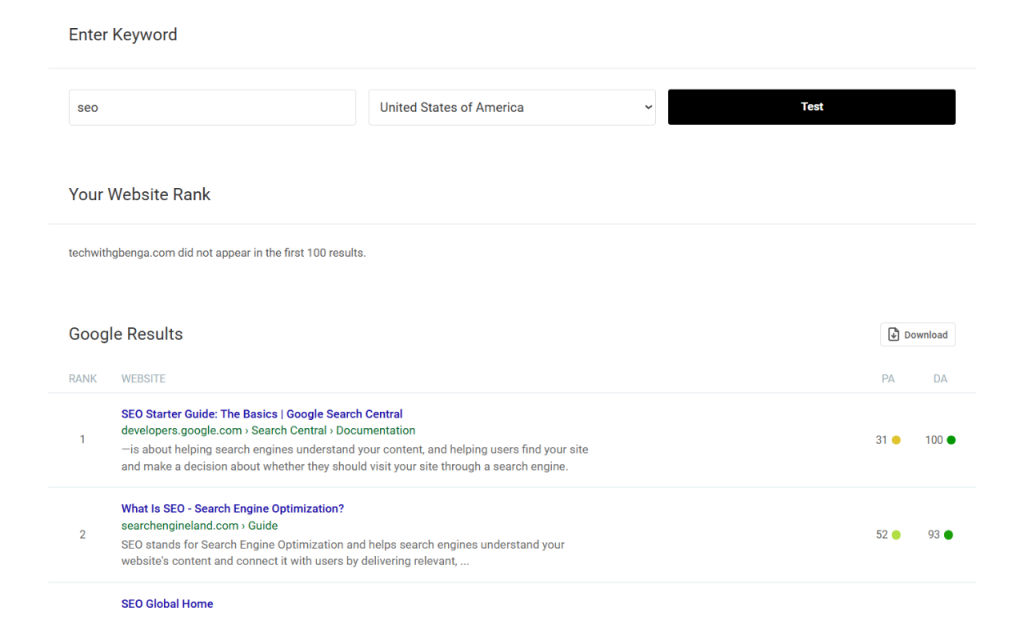
What it does: The Google and Bing SERP tools let you test target keywords to see where your website ranks on each search engine’s results page. Enter a keyword and your site’s URL( or current active site URL while using extension), and the tool scans up to 100 results to find your position. It then tells you your rank (if any) on Google or Bing.
Why use it: Tracking keyword rankings is fundamental. As one SEO guide notes, “monitoring keyword rankings helps you understand where your web pages stand in search results”. By seeing your actual rank for important keywords, you can measure progress after optimizations or identify keywords where you’re slipping. These checks supplement Google Search Console (which shows average position) with on-demand, up-to-date rank data for both search engines.
Real-world usage: For example, an SEO manager might use QueryQuake’s Google SERP Checker once a week to track priority terms. If your page has slipped from page 1 to page 2, you can investigate why (content changes, new competition, etc.) and take action. You can also run the Bing tool to ensure Bing (which still powers Yahoo and MSN) shows similar ranks. In international markets, Bing’s algorithm differs, so using both helps catch regional variations.
You can integrate SERP checks with other tools. For instance, after using Top Search Queries to find promising keywords (below), test those with the SERP tool. Or after competitor analysis (see later), run SERP checks on competitor keywords to benchmark your position. The instant feedback helps you “fine-tune your strategy” and drive more traffic.
Top Search Queries
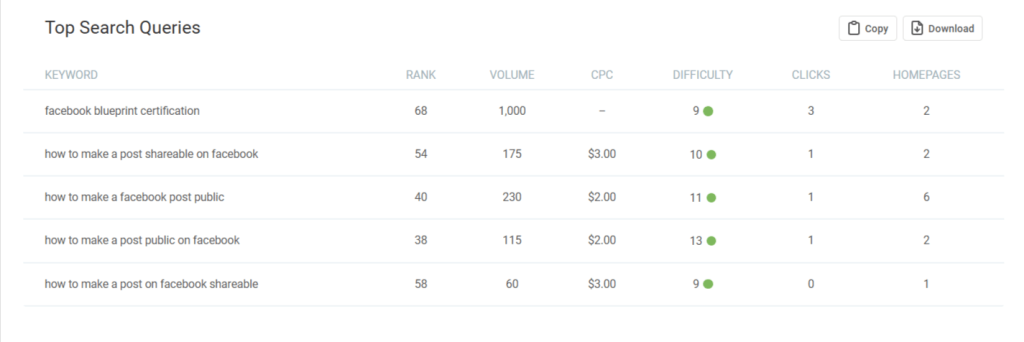
What it does: This tool shows the most popular search queries that lead to your site. It lists each query along with key metrics: your average rank for that query, monthly search volume, CPC (cost-per-click in Google Ads), keyword difficulty, estimated clicks, and how many top-10 results are homepages.
How to use it: Enter your domain (or a competitor’s) and region, then view the table of queries. The columns are:
- Rank: Your site’s average ranking position for the query.
- Volume: Average monthly search volume in that region.
- CPC: Broad average cost-per-click (USD) if advertised. High CPC often signals a valuable keyword.
- Difficulty: A 0-100 score estimating how hard it is to rank organically (0 = easiest, 100 = hardest).
- Clicks: Estimated number of clicks you get from that query per month.
- Homepages: How many of the top-10 results are homepages (vs internal pages).
Why it matters: Keyword research metrics like search volume, CPC, and difficulty help prioritize targets. For instance, a query with high volume and low difficulty could be a “quick win.” A high CPC indicates commercial intent, useful if you do PPC. By studying the list, you can discover keywords you hadn’t considered and see which ones already drive traffic.
Real-world usage: Suppose your site sells shoes. You might find that “best running shoes” has moderate volume but very high difficulty, whereas “breathable running sneakers” has lower difficulty and still decent traffic. QueryQuake highlights these differences. You could then use the SERP check tool to see where you currently rank for the new phrase, or use the Keyword Research tool to find related long-tail terms.
Overall, the Top Search Queries report gives an overview of which keywords matter now for your site, helping you refine content and paid search strategies.
Indexing & Crawl Tools
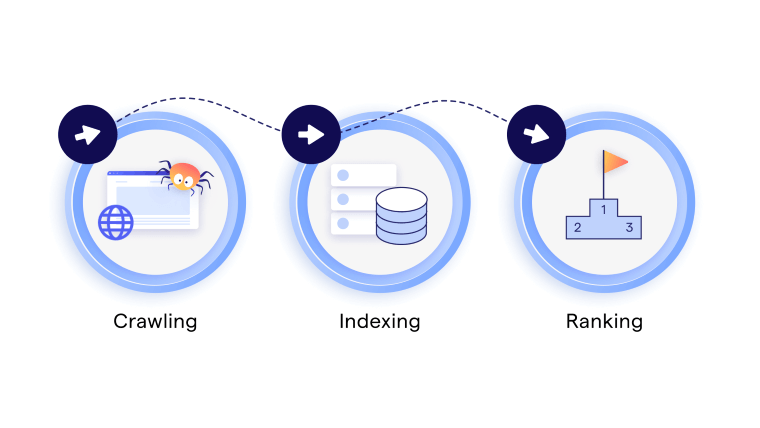
Indexed Pages Checker
What it does: Checks how many pages of your site are indexed by Google and Bing. This quickly shows whether search engines have discovered and indexed your content. See tool.
Usage: Enter your domain (or any URL) and run the check. QueryQuake will query Google and Bing simultaneously and report the total indexed pages count for each. It also gives a combined list view of those counts.
Why it matters: Only indexed pages can appear in search results. If Google shows 0 or very few pages indexed for your site, your site won’t get organic traffic. As one SEO summary puts it, “Indexed pages provide your site with the opportunity to gain qualified, free traffic”. A sudden drop in indexed pages could indicate a problem (e.g. accidentally blocking crawlers). Conversely, seeing a healthy number (hundreds or thousands, depending on your site size) suggests your content is accessible.
Scenario: After launching a new site or major redesign, use this tool to confirm Google has crawled everything. If the number is lower than expected, dig into your robots.txt or sitemap (below). Also compare Google vs Bing, maybe Google indexed 500 pages but Bing only 200, which can guide where to focus efforts.
Robots.txt Analyzer
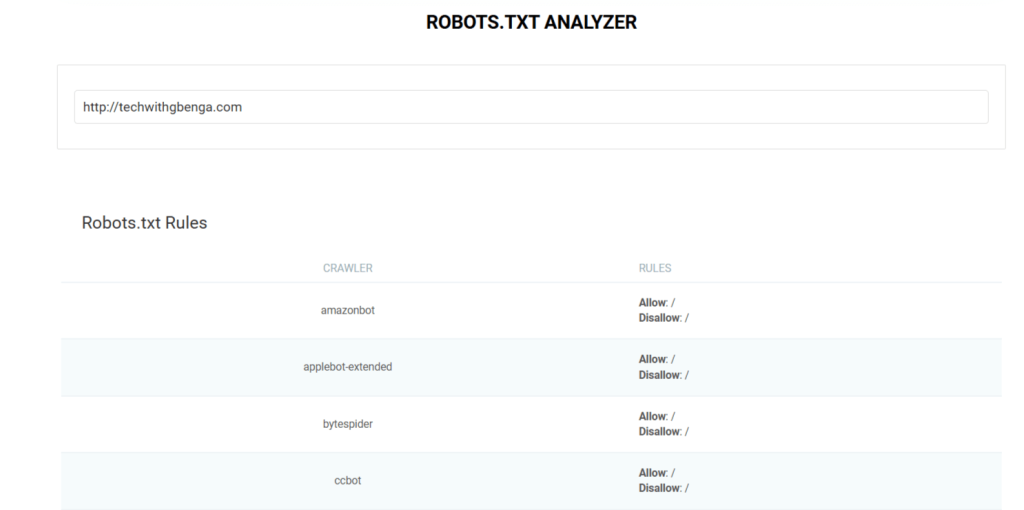
What it does: Fetches and parses your robots.txt file, displaying all directives (Allow/Disallow rules) in a clear table. It also highlights any Sitemap lines and shows the raw text for review.
Why it matters: The robots.txt file tells search engine crawlers which URLs they may or may not access on your site. A single misconfigured rule can unintentionally block important pages. For example, if you mistakenly disallow your entire site, Google won’t crawl anything. QueryQuake’s analyzer helps you verify your rules at a glance.
Usage: Enter your domain (e.g. example.com) and run the tool. You’ll see a list of User-Agent rules and their paths (e.g. Disallow: /secret). Use it to double-check that only intended areas are blocked. If you list a sitemap there, QueryQuake also shows that link, helping ensure your sitemap is properly referenced.
Real-world tip: Many SEOs store large sitemaps in robots.txt. This tool confirms that Search engines can find those sitemaps. It’s also handy if you recently updated robots.txt: paste the domain to ensure the changes took effect and no typos exist.
XML Sitemap Viewer
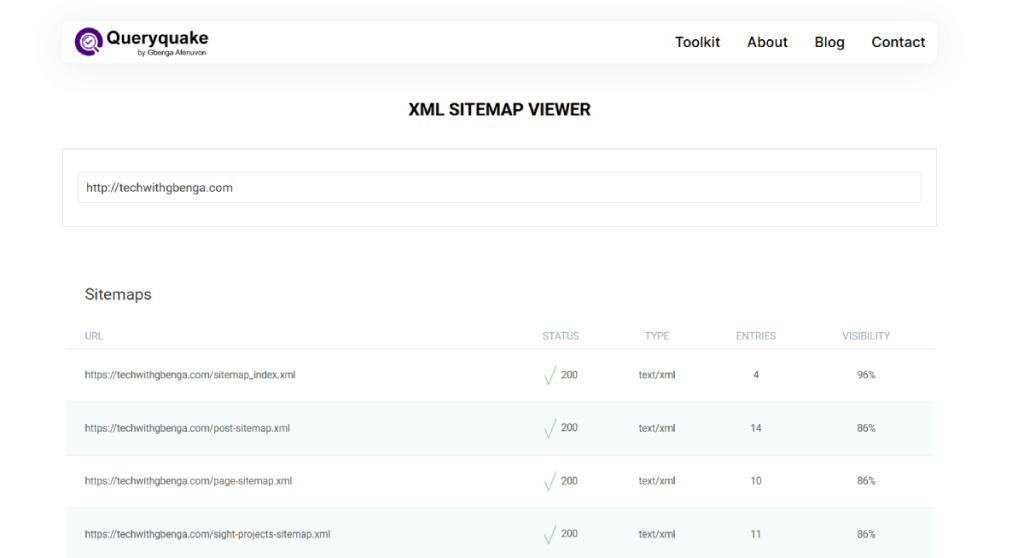
What it does: Crawls your domain to find XML (or RSS) sitemaps, including any referenced in robots.txt and a root sitemap.xml. It follows one level of nested sitemap index files and reports details for each sitemap found. For each sitemap, it shows status (HTTP code), type (XML/RSS), number of entries (URLs), and a “visibility” score (how easy it was to find).
Why sitemaps matter: A sitemap lists all important URLs on your site for search engines. Google recommends providing a sitemap so crawlers can “crawl your site more efficiently”. Ensuring your sitemap is accessible and up-to-date helps new pages get discovered.
Usage: Input your site’s domain. QueryQuake will display each sitemap and its stats. For example, it might find sitemap.xml with 1,000 URLs (entries) at 200 OK, and any other sitemaps (e.g. blog archives, RSS feed). Check that each sitemap’s status is 200 and entries count matches your expectations. A low visibility score (below 100%) means the sitemap was not immediately found, which could signal an indexing issue.
Practical workflow: If you just published new content, use this tool to confirm the sitemap was updated with those URLs. If a sitemap shows an HTTP error (404, 500, etc.), fix it. You can then submit it (next tool) to expedite indexing.
Sitemap Submission
What it does: Lets you submit a root sitemap URL directly to Google and Bing. This prompts the search engines to re-crawl that sitemap and (ideally) index any new or updated pages in it.
Why use it: Typically, Google Search Console is the preferred way to submit sitemaps, but QueryQuake offers a quick alternative. Submission requests via search console get priority and monitoring, but QueryQuake’s tool is a fast, one-click solution. It’s useful for instant actions or for users without easy console access.
Usage: Enter your website and the path to your sitemap (e.g. example.com/sitemap.xml) and submit. QueryQuake will ping Google and Bing’s indexing endpoints. According to QueryQuake, this “accelerates the indexing process”. After submitting, monitor via Search Console later for results.
Real-world tip: After large site updates (new blog posts, product launches, etc.), submitting your sitemap can help Google find those pages sooner. Just be aware not to overuse it; Google’s console guidelines note that frequent submissions have diminishing returns. Still, having this convenience saves time versus logging into multiple webmaster accounts.
Backlink & Authority Tools
High-Quality Backlinks
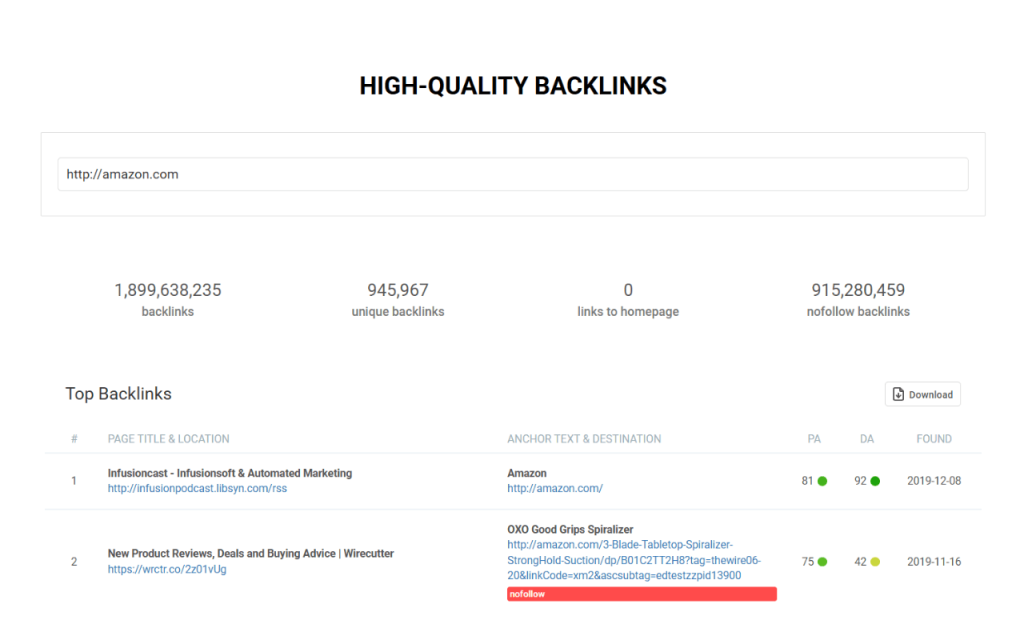
What it does: Scans your site’s backlink profile (up to 250 links) and filters for high-quality links: only those with Page Authority ≥20 and Domain Authority ≥50 (custom thresholds). It lists the top backlinks that meet these criteria.
Why it matters: Not all backlinks are equal. Quality matters more than quantity in SEO. In fact, one SEO source states: “the more high-quality backlinks you have, the higher your website is likely to rank”. QueryQuake’s filter helps you focus on powerful links from strong sites. Page Authority (PA) and Domain Authority (DA) are Moz metrics (0-100) estimating a page’s or site’s ranking potential. By only showing PA≥20 and DA≥50, the tool highlights links that are actually passing significant SEO “juice.”
Usage: Enter your domain and run the tool. Review the listed backlinks: note the source pages and their anchor text. Use this to reinforce relationships: for instance, if a blog mentions you, thank them or request a prominent link. Conversely, if you see unexpected sources (maybe copied content), you can reach out or disavow later.
Integration: Combine with Top Referrers (below) to see which domains provided these high-quality links, and with Domain Authority to track if your overall score is growing over time. Use the data to guide outreach: e.g. partner with similar high-authority sites.
Latest Backlinks
What it does: Shows up to 250 backlinks that have appeared in the last two months, sorted by newest first. Essentially, it monitors recently discovered links.
Why it matters: In any link-building or content campaign, you want to know quickly when someone links to you. This helps measure immediate impact. Maybe you wrote a guest post or press release; did it yield links? The tool answers that. Keeping your backlink profile current also alerts you to any sudden spikes (good or suspicious).
Usage: Run this tool after, say, a marketing campaign. You’ll see new links you earned. Compare with your email or campaign launch date to verify. If a link seems odd or spammy, you could catch it early. Likewise, if a high-authority site is just linked, you might amplify that content further.
SEO tip: Even if you have a spammy link, Google’s Penguin algorithm generally ignores bad links. However, knowing about low-quality links is still useful (see below) to avoid an unnatural link profile.
Low-Quality Backlinks (Risky Links)
What it does: Scans your latest 500 backlinks and flags the ones that are potentially harmful. Specifically, it highlights any links with Page Authority below 7 that are not marked “nofollow”. These low-PA, dofollow links may be spammy.
Why it matters: A few bad links won’t necessarily sink your site (Google often just ignores spammy links), but a large number of such links can trigger manual penalties or algorithmic issues. It’s wise to monitor them and clean up your profile.
Usage: After running it, you get a list of suspect links. For each, decide: Is it from a spam blog, comment, or irrelevant directory? If yes, you may ask that site to remove the link or add rel=”nofollow”. Otherwise, use Google’s Disavow Tool to tell Google not to count these links. Staying proactive here “helps protect your site’s reputation”.
Best practice: Regularly check this list. If you see a sudden influx of low-quality links, it might indicate negative SEO (someone planting bad links). Identifying them quickly lets you respond before it impacts your rankings.
Top Referrers
What it does: Identifies the top 100 external domains linking to your site, sorted by how many backlinks each provides. For each referring domain, it shows: total backlinks to you, how many are dofollow, the domain’s Authority score, and the date when the first link was discovered.
Why it matters: Knowing who your biggest supporters are is key. If 50% of your links come from just one or two domains, you might want to diversify. This list also shows you which partnerships or sources to cultivate more. Dofollow links (which pass SEO “juice”) are especially valuable as HubSpot notes, “getting a backlink from a reputable site can significantly boost PageRank values”.
Usage: Run the tool and scan the list of domains. The Backlink Count tells you which sites are most linked. The Dofollow Links column is crucial – high dofollow count means those links will transfer authority. If one domain has many nofollow links, the SEO benefit is limited. Also check the Domain Authority: links from higher-DA sites are more powerful, so prioritize outreach to similar high-DA sites.
Practical example: Suppose example-blog.com is your top referrer. You see it has 10 dofollow links to you and a DA of 60. You might reach out to example-blog.com for more opportunities (guest posts, collaborations). Conversely, if a site has lots of links but DA only 10, it might be low-value. Use this tool to allocate your link-building efforts efficiently.
Domain Authority Checker
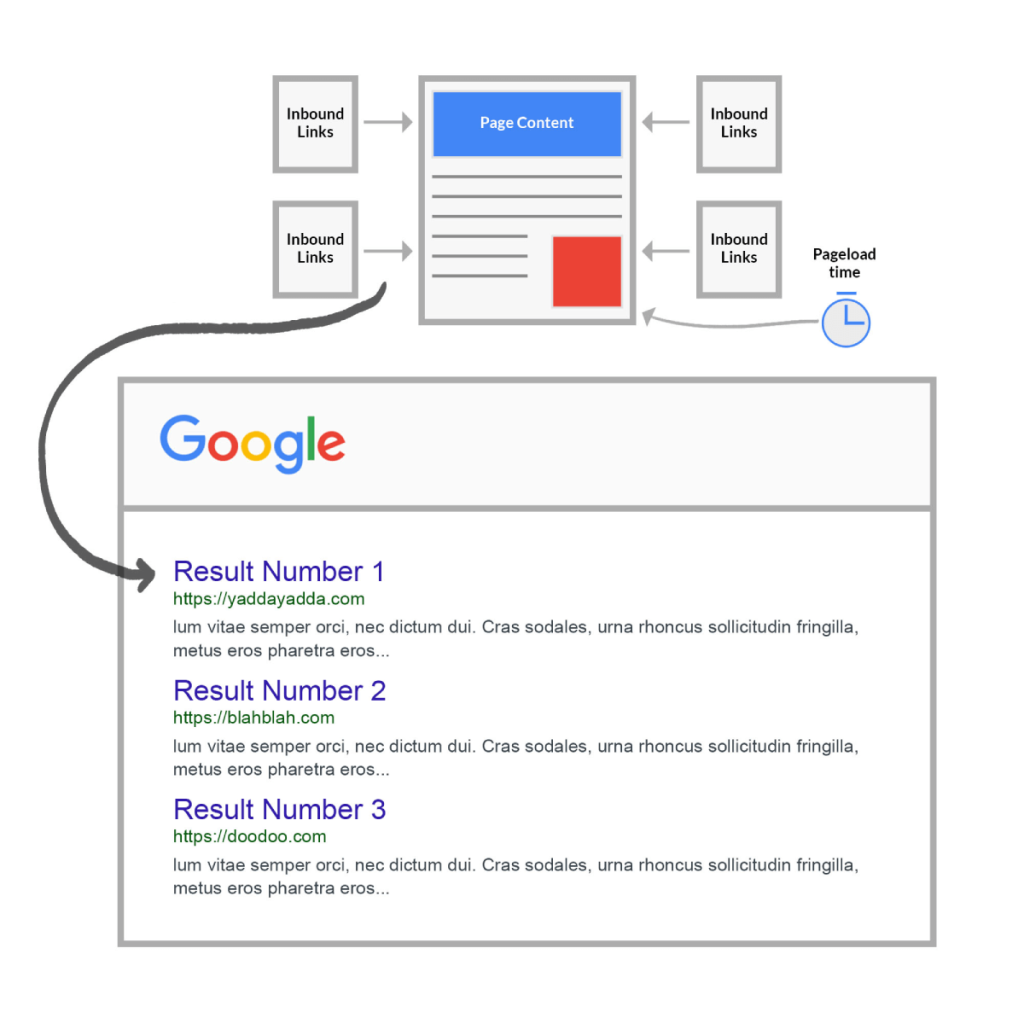
What it does: Computes a Domain Authority (DA) score (0-100) for any domain. It analyzes internal and external backlinks logarithmically to give an overall “authority” benchmark for the site, updated monthly.
Why it matters: Domain Authority is a common industry metric (originally by Moz) estimating a site’s relative strength in search. While Google’s actual algorithms are secret, DA correlates with ability to rank on competitive terms. A higher DA generally means a better chance to rank for many keywords. By tracking your DA, you can gauge if your link-building is paying off.
Usage: Enter any domain (yours or competitors’) and get the DA score. For example, if your DA is 40 and a main competitor’s is 50, you know there’s a gap in authority to close. Use DA in conjunction with backlink counts: if DA isn’t rising despite many backlinks, maybe your links are low-quality (low DA as referrers).
Context: QueryQuake explains DA as a 0-100 score reflecting inbound link popularity. This matches Moz’s definition – they also note DA is logarithmic and updated monthly. Keep in mind DA is relative: jumping from 20 to 30 is easier than from 70 to 80. Still, seeing DA changes over time can help “enhance your link-building strategies”.
Page Authority Checker
What it does: Similar to the DA tool, but for individual pages. It assigns each URL a Page Authority (PA) score (0-100) based on its own links (internal + external).
Why it matters: Not all pages are equal. Perhaps your homepage has a PA of 60, but a new blog post is only PA 20. Lower-PA pages may struggle to rank for competitive terms. Use this tool to audit any page: see if key landing pages have strong PA. If a page is important but weak, you might increase its internal links or build new external links to it.
Usage: Enter a full page URL and get its PA. Compare against competitor pages. QueryQuake’s PA checker helps “identify areas for improvement and fine-tune your content strategy”. For instance, if your top product page has low PA, you could add more internal links from your home page or related posts.
Technical SEO & Performance Tools
Crawlability Test
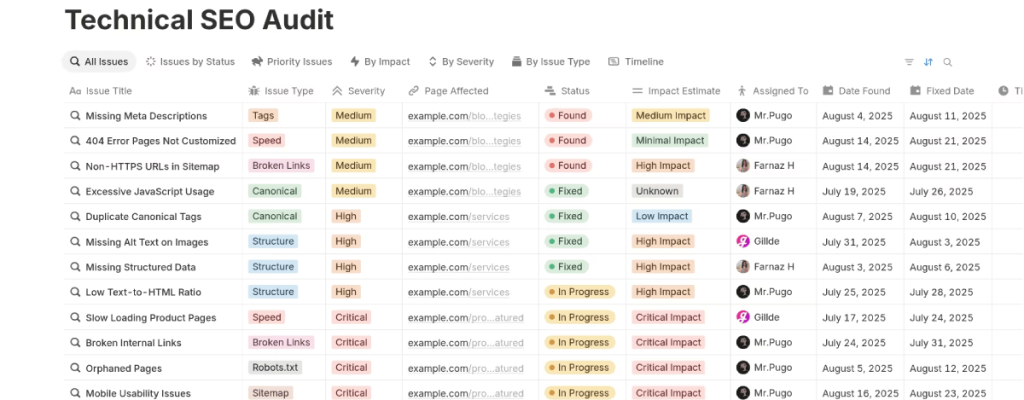
What it does: Verifies whether search engines can crawl and index specific pages. It checks for any meta robots tags (like noindex) on the page, and examines your robots.txt directives, to spot anything that might block bots.
Why it matters: If a page is accidentally set to noindex or disallowed in robots.txt, Google will not list it in search. This tool finds those issues. For example, adding <meta name=”robots” content=”noindex”> in your HTML will prevent Google from indexing a page. QueryQuake flags such tags. It also checks if your robots.txt Disallow rules might be blocking your page.
Usage: Enter a URL to test. The tool will highlight any red flags (e.g. a noindex tag). If you see noindex, remember Google’s docs: this tag will keep a page out of search results even if other sites link to it. Remove unwanted noindex tags or change robots.txt as needed. Use this when launching new content or suspecting indexing problems.
Mobile Support Test
What it does: Checks whether your site’s code is mobile-friendly. It analyzes meta tags (like viewport), CSS styles, and other elements to guess if your site is responsive or has a dedicated mobile layout.
Why it matters: Google now uses mobile-first indexing, it predominantly looks at the mobile version of your site when ranking pages. In practice, this means if your mobile site is broken or slow, your desktop rankings will suffer. Ensuring your site is responsive or mobile-optimized is “very strongly recommended” by Google.
Usage: Run the tool for your homepage or any critical page. It will indicate if it sees a mobile-friendly setup. If it reports issues (e.g. missing viewport), fix them. Use this alongside Google’s own Mobile-Friendly Test for confirmation. A mobile-friendly site improves user experience on phones and secures your rankings under mobile-first indexing.
HTTP Header Analysis
What it does: Retrieves the HTTP response headers for any page you enter. It shows all headers (server, cookies, caching rules, etc.) and detects any redirects (301 or 302).
Why it matters: Analyzing HTTP headers helps debug technical issues. For instance, if a URL is redirecting unexpectedly, this tool will show if it’s a 301 (permanent) or 302 (temporary) redirect. From an SEO standpoint, 301 redirects preserve almost all link equity to the new URL, while 302 redirects do not pass the same authority (often acting like a new page). Misusing a 302 instead of 301 can split link signals between URLs.
Usage: Enter any URL. Review its response code (200 OK, 301, 302, 404, etc.). If you expected a page to be indexed but it shows a 301 to another page, that explains it. If you see a 302 redirect where you expected it to be permanent, update it. Also inspect caching headers (Cache-Control, Expires) to ensure your pages are cached appropriately.
Insight: The QueryQuake tool flags redirects and explicitly notes their type. For example, a permanent move (301) will preserve “link juice” to the new address. A temporary redirect (302) should only be used if content is going to revert back; otherwise use 301. This ensures search engines correctly index your intended pages.
Site Speed Test
What it does: Measures your site’s load performance from various global locations. The report includes overall load time, a performance score, total page size, and number of HTTP requests. It also breaks down resource types (images, scripts, CSS) and flags any errors or redirects.
Why speed matters: Fast loading pages are crucial for user experience and SEO. Google considers page speed a ranking factor (especially on mobile) and favors sites that load quickly. Slow pages frustrate users, leading to higher bounce rates. In fact, one source notes that “a slow website can increase bounce rates, negatively impacting both rankings and user experience”. Optimizing speed is an easy win for SEO.
Usage: Enter your site’s URL and choose a test location (e.g. your primary audience region). QueryQuake will display your page size, load time, requests, and any slow assets. Look for large images or unminified scripts. The tool will point out any HTTP 400/500 errors or multiple redirects that slow page load.
Real-world tip: Focus on reducing total load time and requests. For example, compress images, combine CSS/JS, and eliminate unnecessary plugins. After optimizations, rerun the test to see improvements. Faster sites tend to rank better and convert more visitors.
On-Page Optimization Tools
Link Analysis
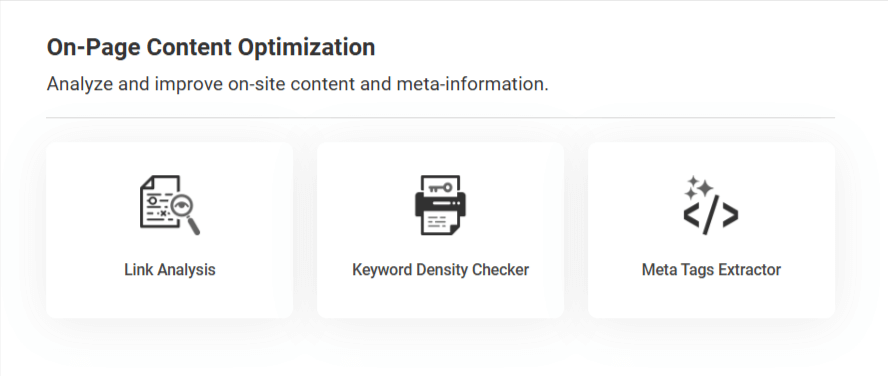
What it does: Scans a given webpage and lists every link on it. For each link, it shows the anchor text, whether it’s internal or external, its location on the page, and if it’s followed or nofollowed.
Why it matters: Understanding your linking structure helps you optimize navigation and SEO. Internal links help search engines discover and index more pages on your site. Good internal linking can also distribute “link equity” to important pages, improving their rank potential. Anchor text is also key: Google recommends using descriptive anchor text so that users and bots understand what the linked page is about.
Usage: Enter a URL (e.g. an article or category page). Review the list of links. Check that anchor texts are descriptive (avoid “click here” or blank anchors). Ensure you have the right balance of internal vs external links. For example, crucial pages should be reachable via internal links from other pages. If you spot a broken or irrelevant external link, update or remove it.
Optimization: Use this tool regularly on high-value pages. For a blog post, ensure you link to related posts (improving dwell time) and that the most important keywords in the content link to relevant pages with appropriate anchor text (boosting SEO). The Link Analysis tool makes it easy to audit all links at once and fix issues like broken or nofollow links that shouldn’t be.
Keyword Density
What it does: Analyzes a page’s content and calculates the frequency of each keyword or phrase. It shows how many times each phrase appears, whether it’s in the title and description, and a weighted “density” score.
Why it matters (with a caveat): Keyword usage signals topical relevance, but overdoing it is penalized. The weights just indicate relative emphasis. Notably, SEO experts warn against “keyword stuffing”: repeating a term too often can hurt readability and rankings. As Yoast notes, “a high keyphrase density signals to Google that you might be stuffing your text with keywords… [which] can negatively affect your rankings”. In other words, write naturally.
Usage: Enter a page URL. Look at the top phrases and their density. Use it to ensure your target keyword appears in the title and a few times in the text, without being excessive. If your main keyword has zero occurrences, you might want to include it naturally a couple of times (in the title and body). Conversely, if one word accounts for 20% of your text, consider diversifying language.
Tip: Use the density report as a guideline, not a strict target. The highest-weight keywords should match your focus topic. Just avoid very low or high densities. A healthy page usually has its main keywords below ~2-3% of total words, with related phrases sprinkled throughout.
Meta Tags Extractor
What it does: Retrieves and displays a page’s <title> and various meta tags (description, robots, etc.), and indicates whether each is used by Google or Bing.
Why it matters: Meta tags (especially title and description) are key on-page elements. A good title tag is arguably “the most powerful ranking factor” among on-page elements. It tells users and search engines what the page is about. Titles should be unique, concise, and include your primary keyword near the front. Meta descriptions don’t directly affect ranking, but they influence click-through rate: a compelling description can dramatically increase clicks in SERPs.
Usage: Enter a URL. Verify the title and description shown by the tool. Check that the title is unique and within ~50-60 characters. It should clearly reflect the page content and ideally contain the main keyword. For description, ensure it summarizes the page and is within ~150-160 characters. Avoid missing or duplicate titles/descriptions. If the tool flags any meta tags missing or duplicates, fix them in your page’s HTML or CMS.
Best practice: If QueryQuake shows a missing <title>, add one immediately, no page should be title-less. For meta descriptions, use them to entice clicks: as Conductor notes, a bad or absent description can “decrease your CTR”. Use action words or value propositions in your descriptions.
Keyword Research & Competitor Tools
Keyword Research
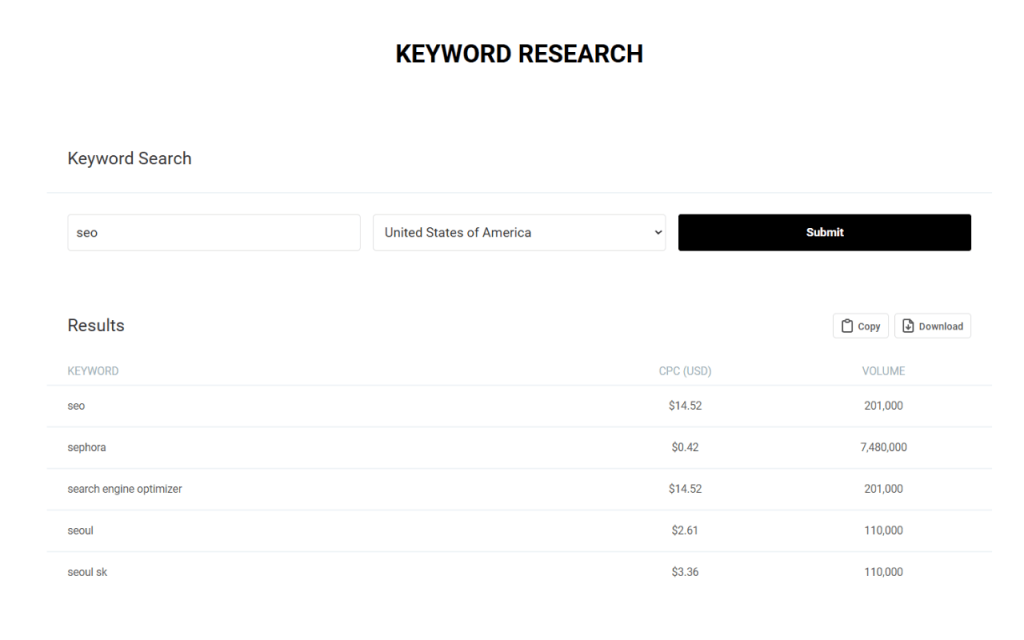
What it does: Generates keyword suggestions based on a seed term and region. It combines Google Autocomplete suggestions with Surfer SEO data to compile a list of related keywords. For each suggestion, it shows search volume and CPC for the chosen region.
Why it matters: Effective keyword research is foundational. Understanding which terms your audience uses allows you to target content effectively. Search volume and CPC are key metrics. Higher volume means more potential traffic; CPC indicates competition/monetary value. Surfer SEO’s data enriches suggestions beyond just Google’s autocomplete.
Usage: Input a broad seed keyword (e.g. “digital marketing”) and pick a country. QueryQuake will list relevant terms like “digital marketing strategy”, “digital marketing courses”, etc., with their monthly search volume and CPC. Sort or filter by volume to find high-traffic terms, or by CPC for high-value ones. Use this to plan content topics, PPC campaigns, or find long-tail phrases to rank for.
Integration: After identifying keywords, you can immediately use the Google SERP tool to check where you currently rank for them. Or run the Competition tool (below) with those keywords. This keeps your research actionable.
Competitor Analysis (SEO)
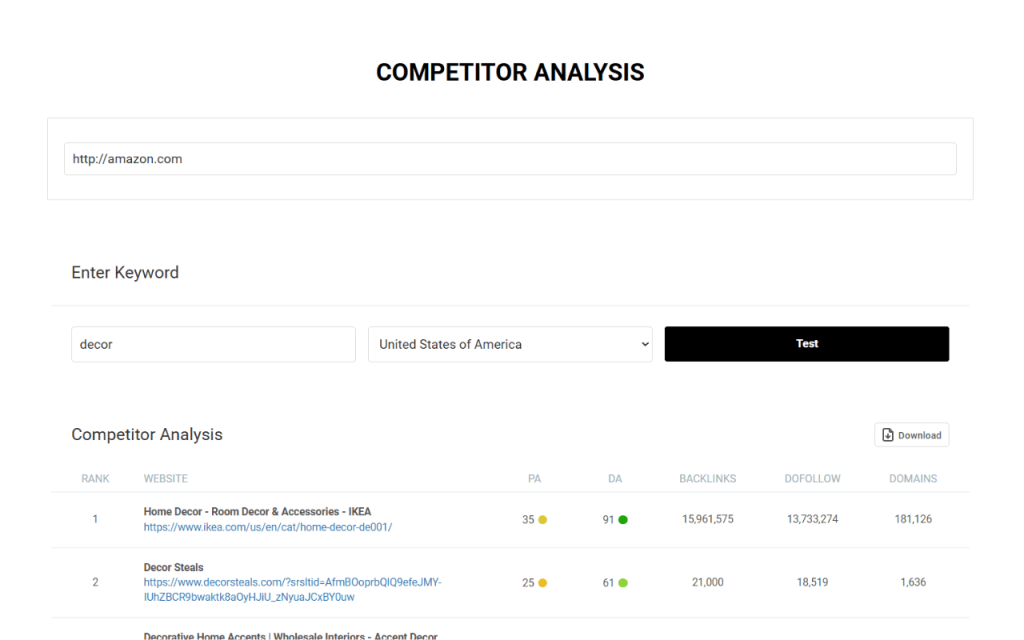
What it does: Performs a targeted Google search for a query of your choice (up to 200 results) and highlights your website’s position among the competitors. It also gathers key SEO metrics (backlinks, authority) for the surrounding results.
Why it matters: Comparing your site to others ranking for the same terms is critical. It helps you see who you’re up against. QueryQuake shows you where your site sits in the SERP and summarizes competitors’ link/authority stats. This lets you identify gaps: maybe your site is #5, but competitors have far more backlinks or higher authority.
Usage: Enter a keyword or query. The tool will show a snippet of the search results (including your site). It then provides backlink counts and DA/PA for each result URL (or domain). Use this to benchmark. For example, if you’re outranking a competitor (higher rank) but they have fewer backlinks, you might focus on content quality. If they outrank you and have 5x your backlinks, invest in link building.
Insight: As the tool says, understanding these metrics lets you “identify areas for improvement, capitalize on your strengths, and adjust your SEO strategy to outperform competitors”. In practice, run this on your main money keywords quarterly. Make a table comparing your link profile vs the top rivals. Then plan: content overhaul, new links, on-page tweaks, etc., to climb above them.
Conclusion
QueryQuake SEO Suite provides a powerful, all-in-one toolkit for professionals and marketers. Whether you’re auditing rankings, crawling issues, backlinks, or on-page factors, QueryQuake delivers actionable data in one place. Best of all, it’s free to use and no subscriptions needed.
Ready to supercharge your SEO? Download QueryQuake (free) from the Chrome Web Store and install the extension to start using these tools immediately. By routinely incorporating QueryQuake into your workflow (e.g. weekly rank checks, monthly backlink audits, or on-page analyses), you can maintain a healthy site and improve your search performance.
Remember to combine QueryQuake’s insights with standard SEO practices: fix any flagged issues (crawl blocks, missing meta tags, slow load times), and follow best practices (natural keyword use, descriptive anchor text, mobile-friendly design). Over time, these tweaks backed by data will lead to higher rankings and more traffic.
In short, QueryQuake empowers you to monitor and optimize your site as if you had a full SEO team. Try it out: click the toolbar icon after installation and explore the tools above. With regular use, QueryQuake can help you pinpoint problems and uncover growth opportunities that keep your SEO on track.